

The Complete Guide to Designing Pinterest Pins for Your Business
Contrary to what some might believe, Pinterest is still one of the best platforms for driving traffic to your website and blog. Pinterest has around 619 million monthly active users who are actively seeking new brands and ideas.
The difference between Pinterest users and social media users is that people on Pinterest come to the platform with an intent to plan, learn, and shop. Your blog post, service, or product might be exactly what they are searching for, and when you use Pinterest well, it can connect that user with your content.
Pinterest is a visual search platform, not just a passive scrolling experience like Instagram or TikTok, so how you design your pins matters for getting the right audience connected with your content.
Creating quality pins doesn't necessarily mean creating aesthetic pins. A "good" pin is one part design and one part strategy. By the end of this post, you'll know the types of pins you can create, what elements to include in your pin graphic, the why behind the design, and where you can find resources to help you create your pins.
How To Create Pinterest Pin Graphics That Drive Real Traffic
When creating Pinterest pin graphics, it’s important that you create them in a way that will drive real traffic to your website, blog post, or whatever it is you’re pointing people to. But that doesn’t just happen by chance!
There’s some strategy that goes into creating pin graphics that create real results, so let’s get into it.
The Non-Negotiables That Every Pinterest Pin Needs
There are some basic elements that are good to have on every pin. Because Pinterest operates like a visual search engine, you always want your pin graphics to be clear and relevant.
Design is important, but shouldn't be prioritized over searchability. Think of it this way — a beautiful pin that no one ever sees doesn't do much for your business. Here's a quick list of do's and don'ts for pin graphics:
The Do's of Creating Pin Graphics
✅ Include your brand's logo, business name, or website URL on the visual (usually a small add-on toward the top or bottom)
✅ Text overlay with at least one keyword that is easily readable (large, easy-to-read font, strong color contrast)
✅ A clear Call-to-action (CTA) like "Read More," "Get the Free Guide," "Save for Later" — because telling people what to do next increases clicks
The Don'ts of Creating Pin Graphics
❌ Use hard-to-read fonts or colors (please avoid script fonts!!)
❌ Use brand photos (in some cases it's okay to use these, but for the most part brand photos aren't as relevant or helpful for searchability)
❌ Include random stock photos just for the vibes and aesthetics that don't have anything to do with your content
❌ Include too much text that confuses the reader about what to do next

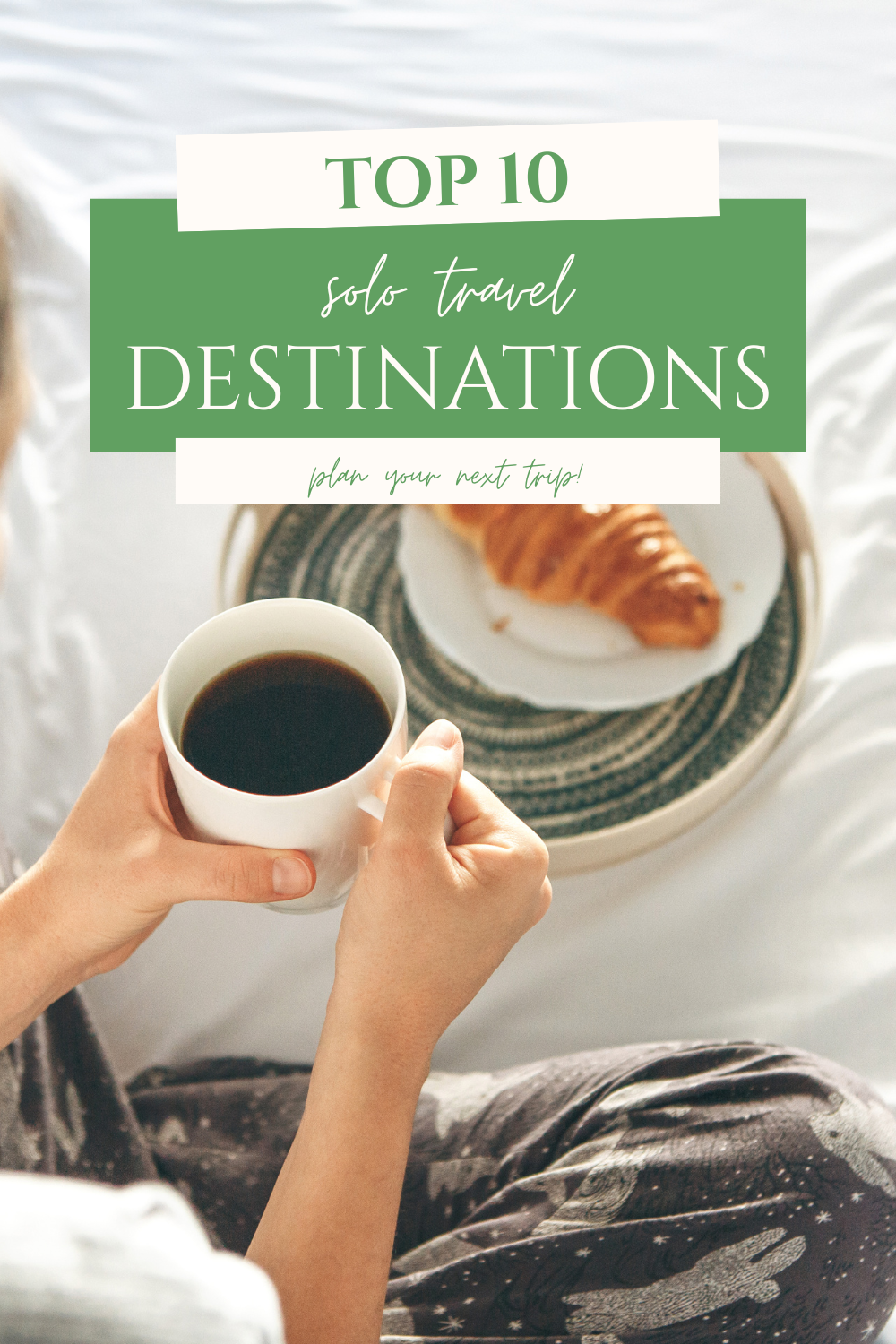
The Different Types of Pinterest Pins You Can Create
One of the things I love about Pinterest is that there's more than one way to show up. Depending on your content and your niche, some pin types will perform better than others — and the only way to know is to test them. Here's a breakdown of the different pin types so you know what your options are.
Standard Pin
This is the most common single, vertical image. It's what you see most often when scrolling the feed and it's likely the type of pin you should be creating the most (more on that later).
Pinterest's recommended pin size is 1000 x 1500px (2:3 ratio). If you are designing your pins in Canva, you can find this size by searching "Pinterest Pin" and you'll see an option for a 2:3 ratio pin.
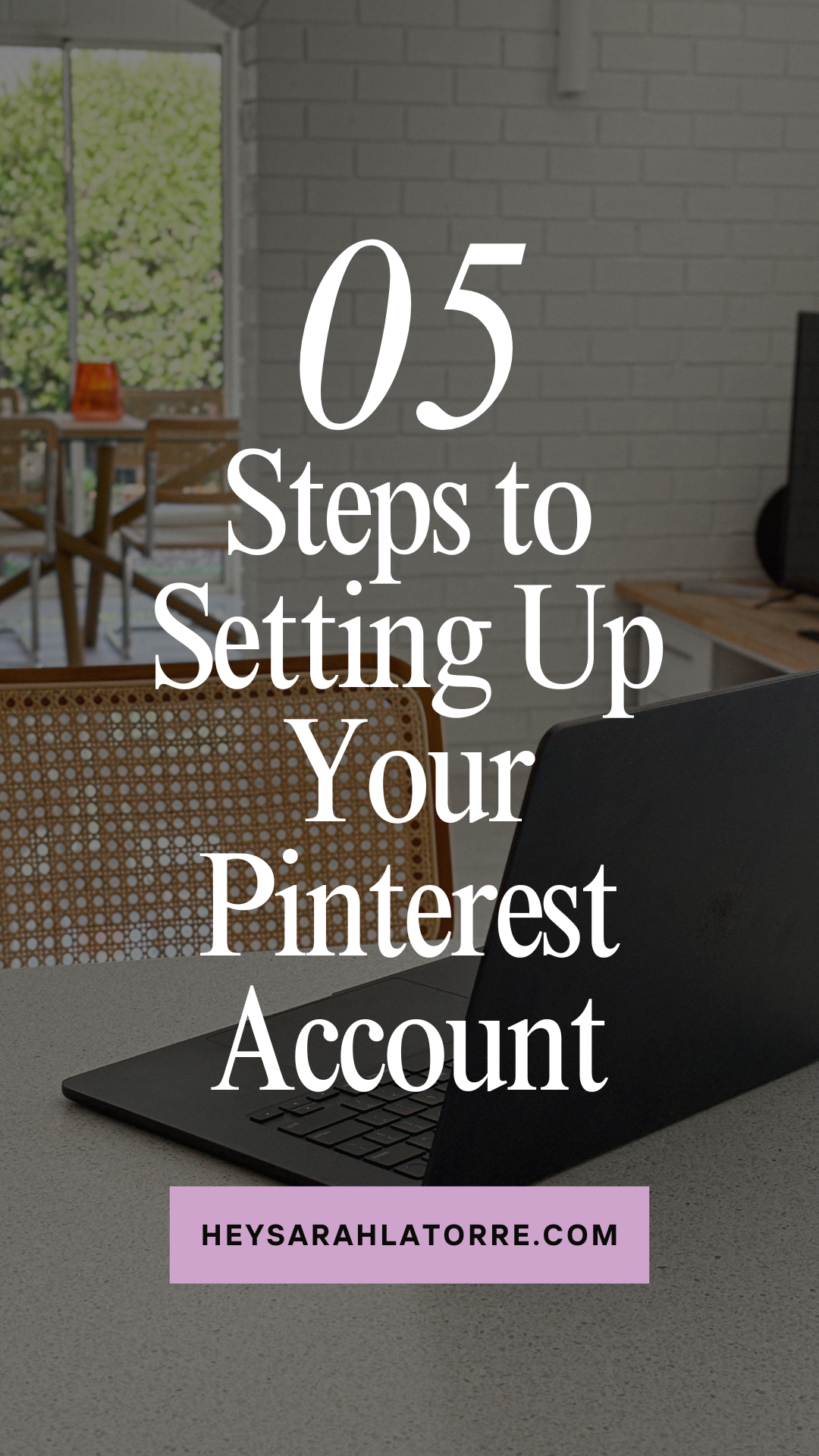
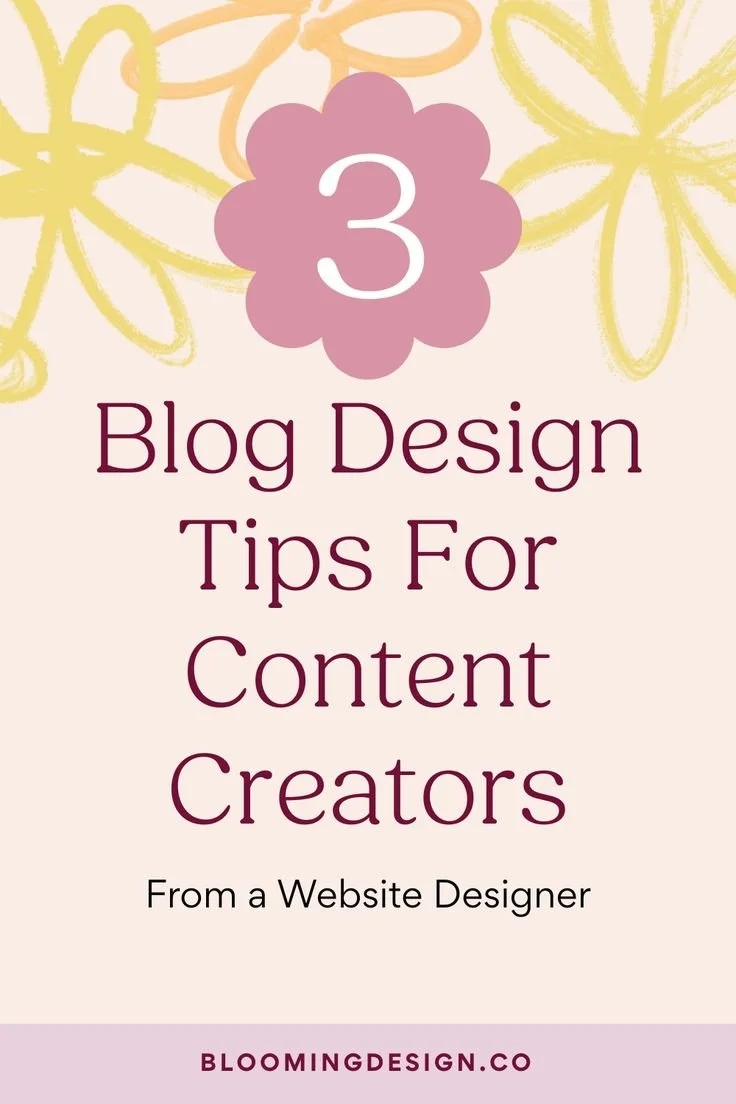
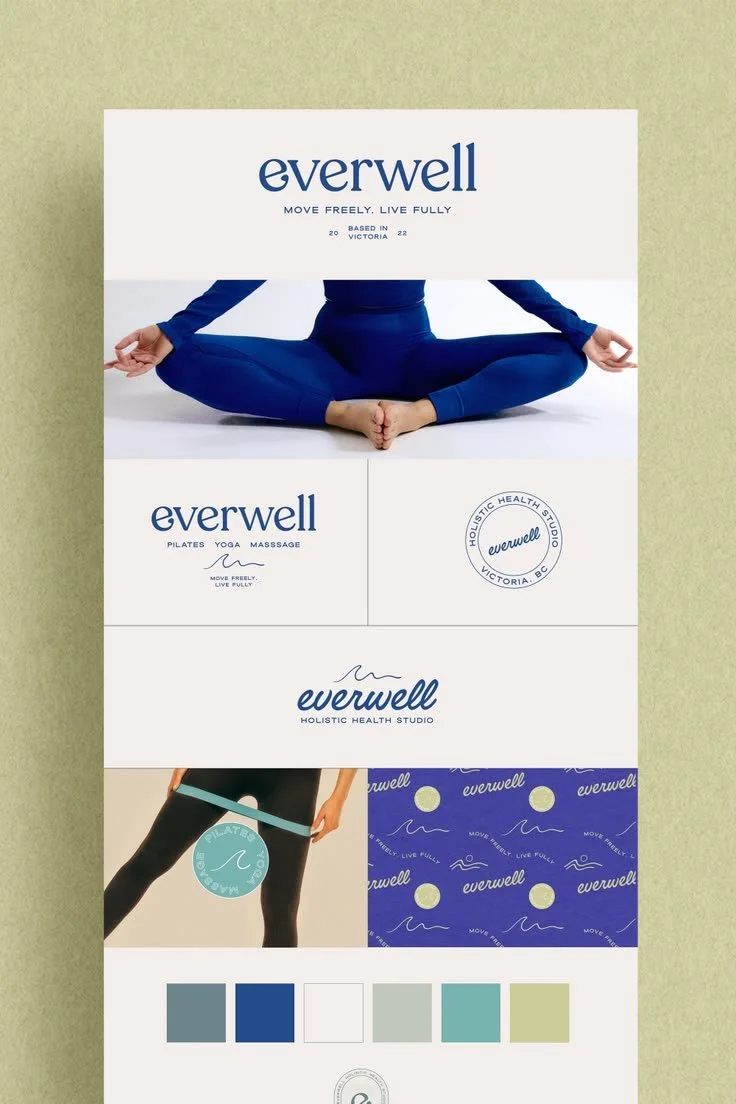
Collage Pin
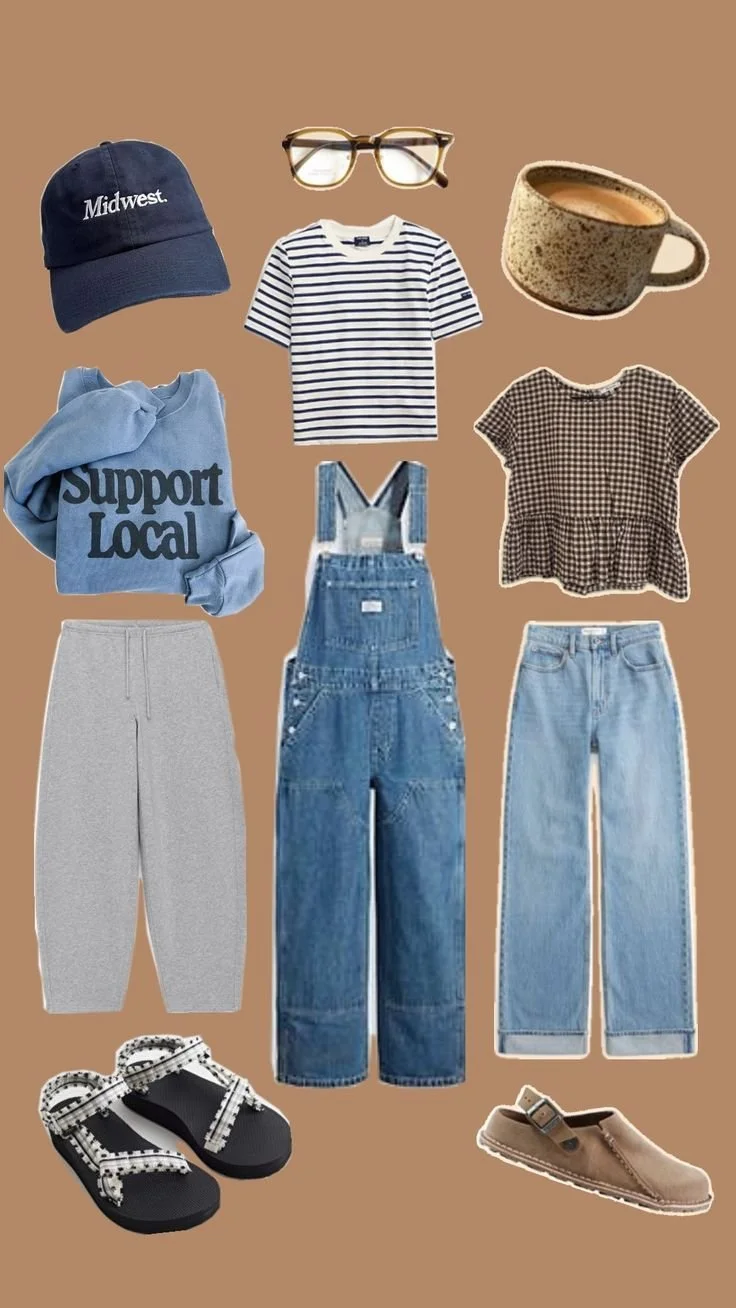
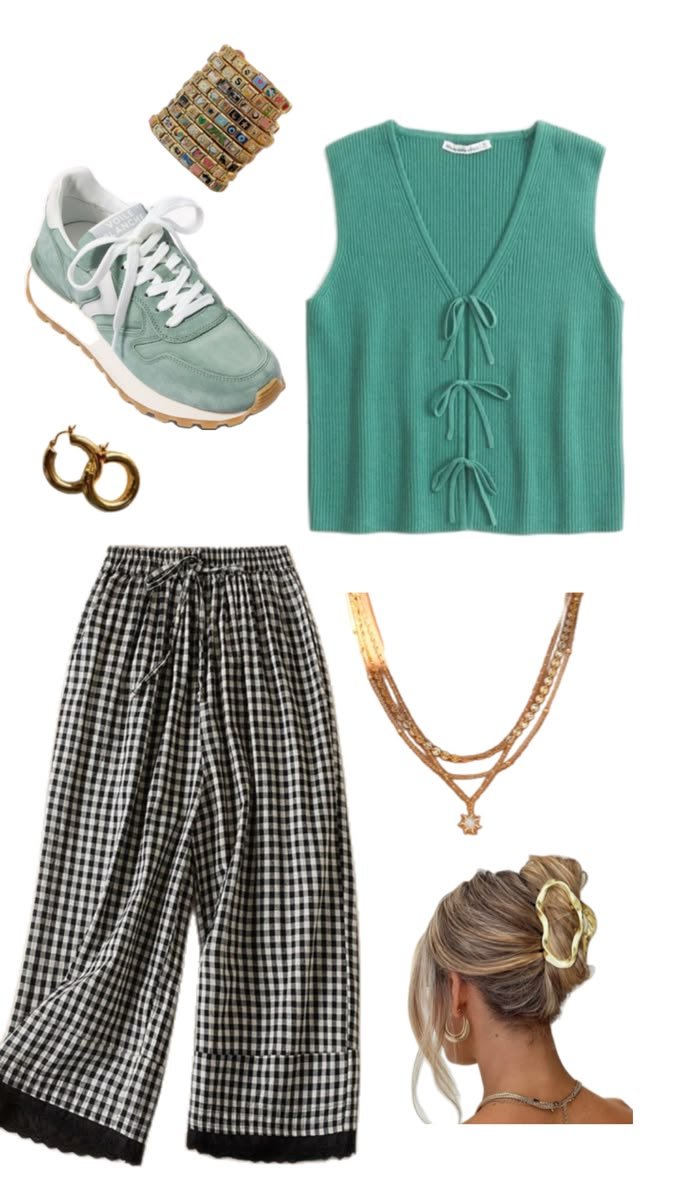
This is an in-app pin builder where you can add graphics from other pins into one pin. I notice Pinterest is showing them more often in the feed lately (as of April 2026) and can see them being a good option for a product business.
You don't necessarily have to use the in-app builder to create collage pins though — you can use Canva to create collages and those types of graphics would work great for product roundups. It is a good option for product businesses to showcase how their products can work together, or for affiliate marketing content creators to share about multiple products they are loving.

Product Pin / Ad Pin
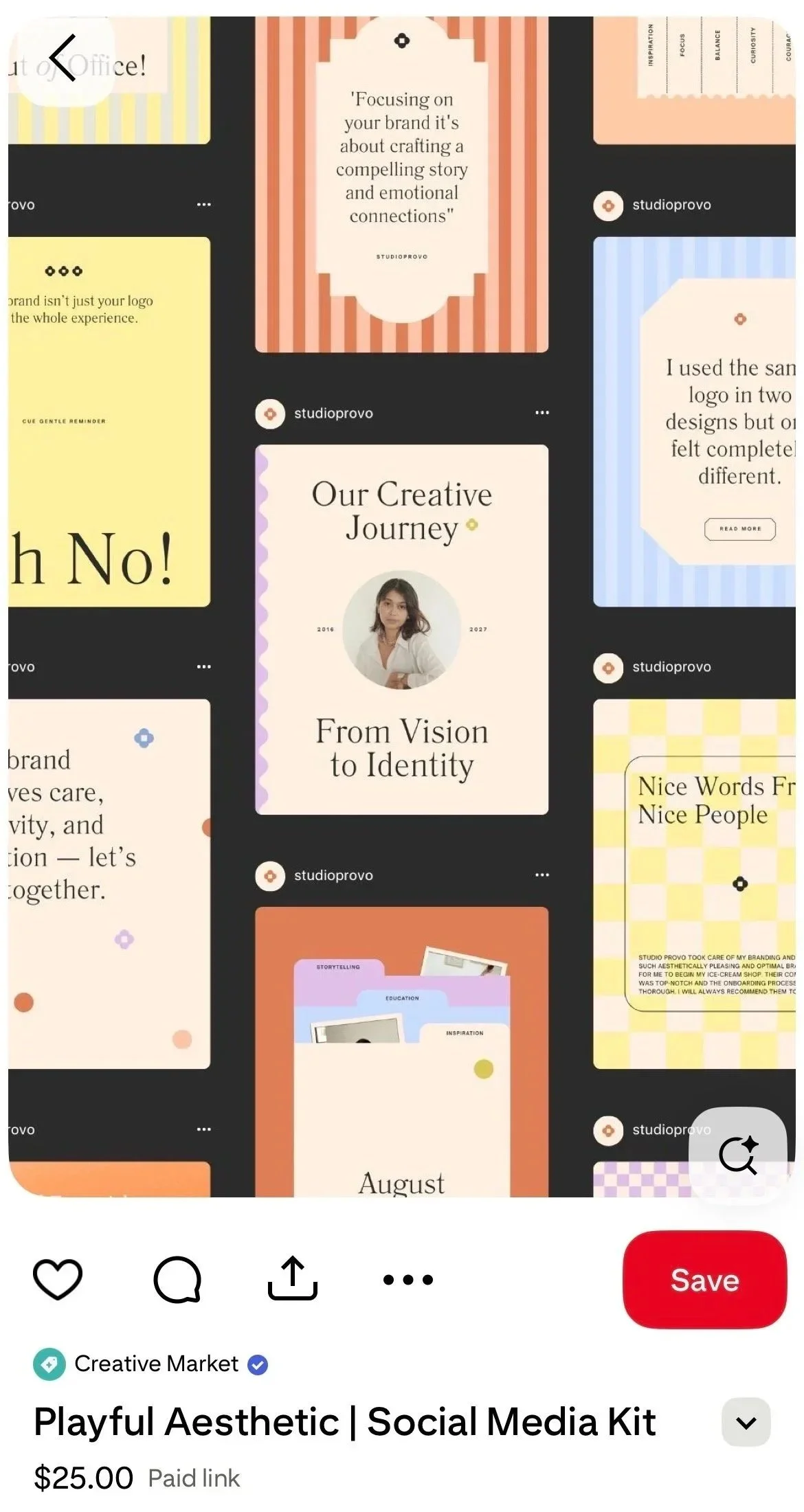
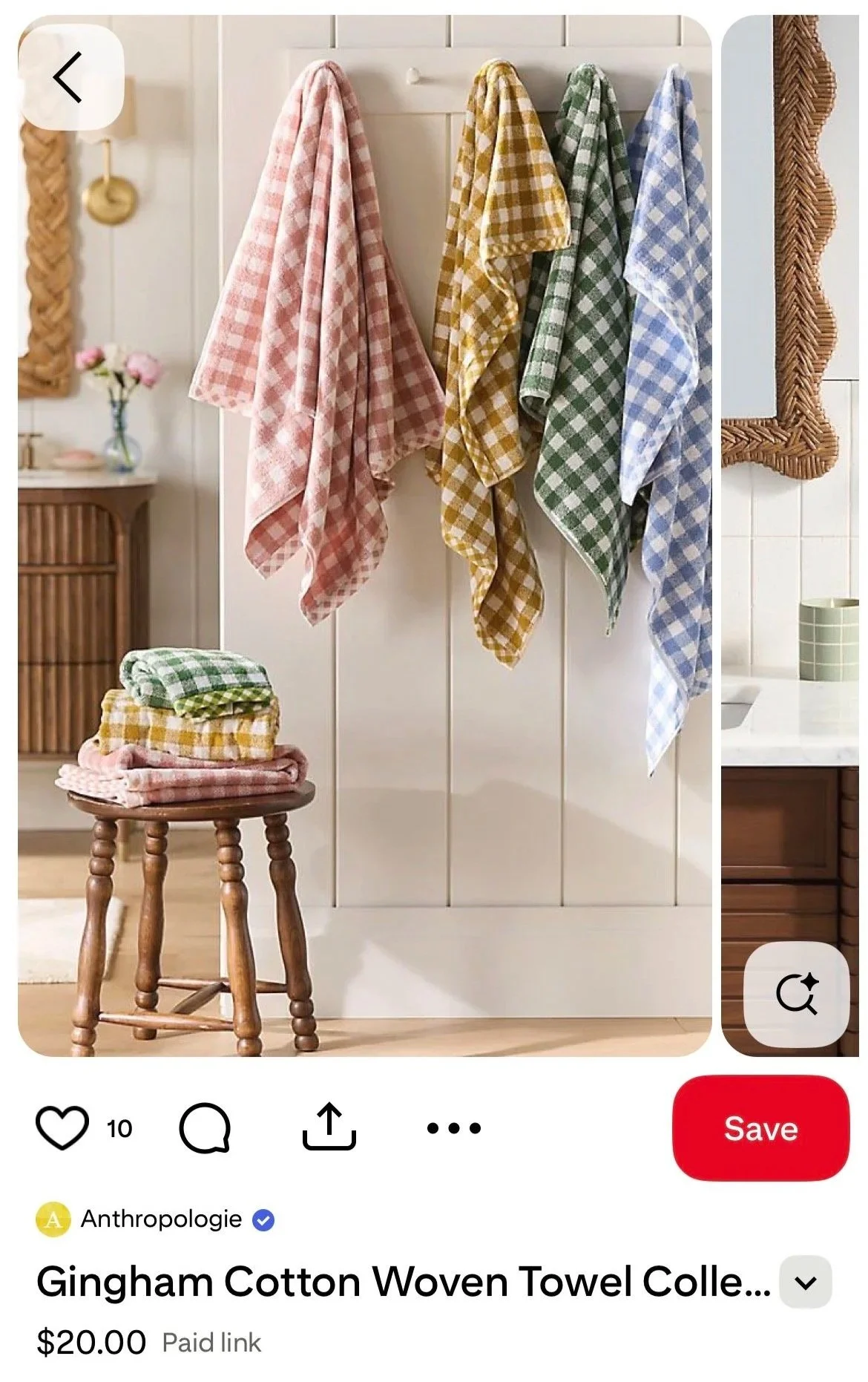
These don't have to be the same thing, but they are easy to talk about together. You can create organic product pins by creating regular pins and tagging your products.
But these also work great for ads if you are a product-based business. If you add your product catalog to Pinterest (see steps for doing this here), you can easily tag your products in pins you create.
When the pinner taps the pin, they see a link to your product that makes it easy for them to click and buy.
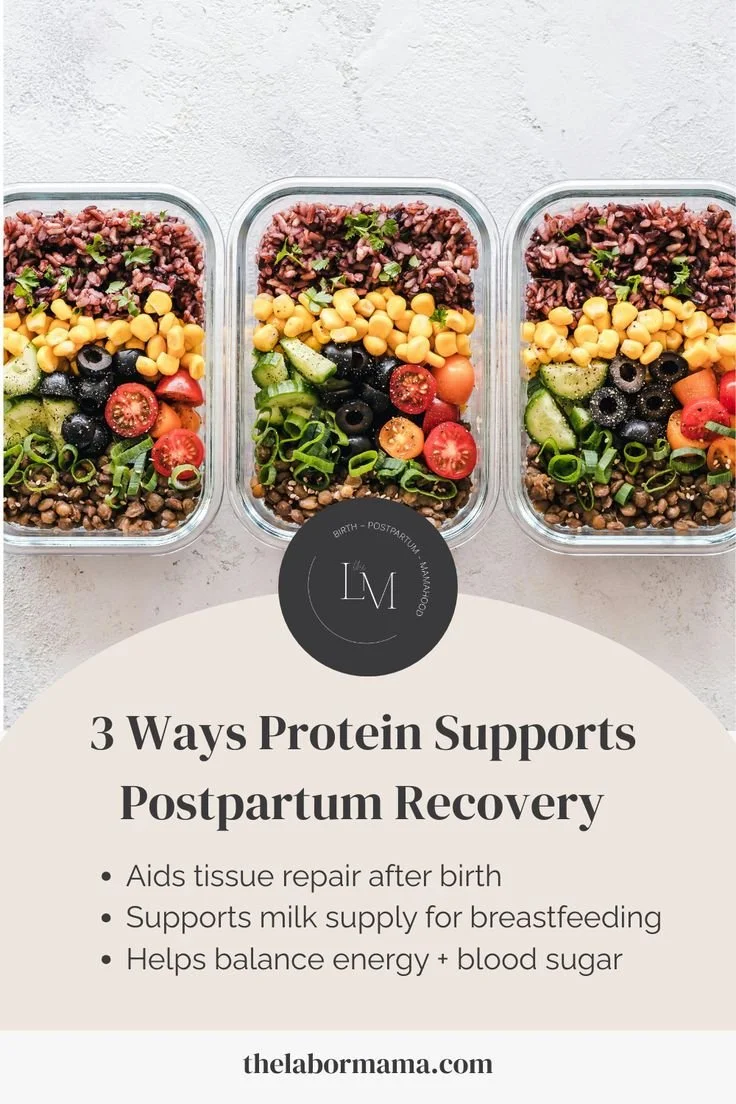
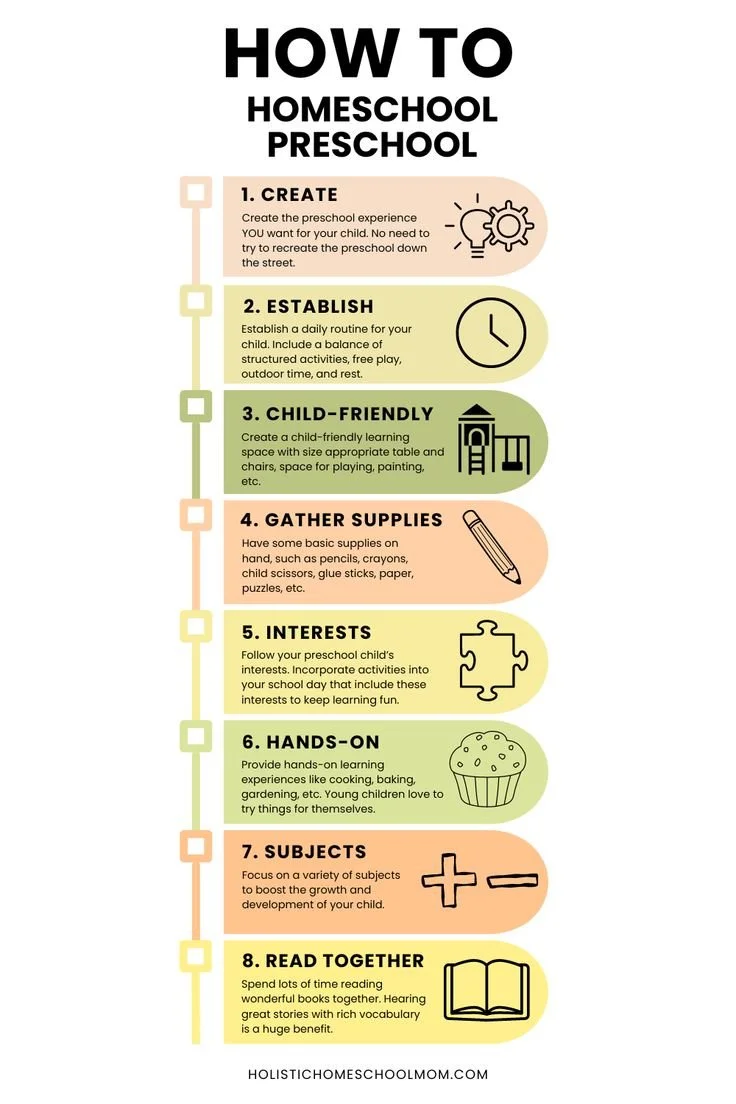
Infographic Pin
This is a great saveable pin to create. Saves are super important to your Pinterest strategy, which is why it's great to have a variety of pin types so you get a variety of engagement.
These usually have a lot more information directly on the pin — they are information or tip-heavy graphics that are usually educational. Someone might want to save these if there are tips they want to implement later or that are helpful as they are planning.
They'll save it to their planning board and refer back to it later. If you are a blogger or service provider, infographics are a great way to repurpose content you've already created by pulling out key takeaways and turning them into a shareable graphic.

Carousel Pins
These are pins that have multiple images that a user can swipe through. This is a good option for storytelling or for including multiple products in one pin.
It could be used to show a similar look in slightly different ways if you are linking an affiliate link to a product or clothing item.
For example, if you have a product that comes in different styles, colors, or variations, this is also a great pin option to show that variety. Think of it like a mini slideshow that keeps someone engaged longer than a single static image would.
How To Choose The Right Stock Images For Your Pins
This can be an overlooked area that actually matters a lot for Pinterest search. If you aren't in a visual-forward industry — like a photographer, designer, or food blogger — you will likely need to rely on stock images when creating some of your pins.
Choosing the right image can be the difference between your content getting pushed to people's feeds or getting lost and never shown to anyone. And it's not determined by how aesthetic your pin is, but by how searchable it is.
Pinterest bots consider all aspects of your pin to categorize it and determine how to promote it, including the image. Because of this, it's important to choose stock photos that are simple, relevant, and visually clear.
If the images you choose are cluttered with a lot of things — think a desk flatlay with office supplies, journals, and headphones scattered around — that might be visually on brand, but if it doesn't help the bots understand the content of your post, it can actually work against you.
It's also important to avoid those super cheesy stock photos with people clearly posing for a stock photo. People are less likely to trust a pin if it looks overly staged or the stock image looks too much like a stock image.
Canva's built-in library of stock images is guilty of having a lot of these kinds of images. When searching, you may have to do some digging to find ones that align with your content and feel realistic.
Top 3 Places to Search for Free, Quality Stock Photos
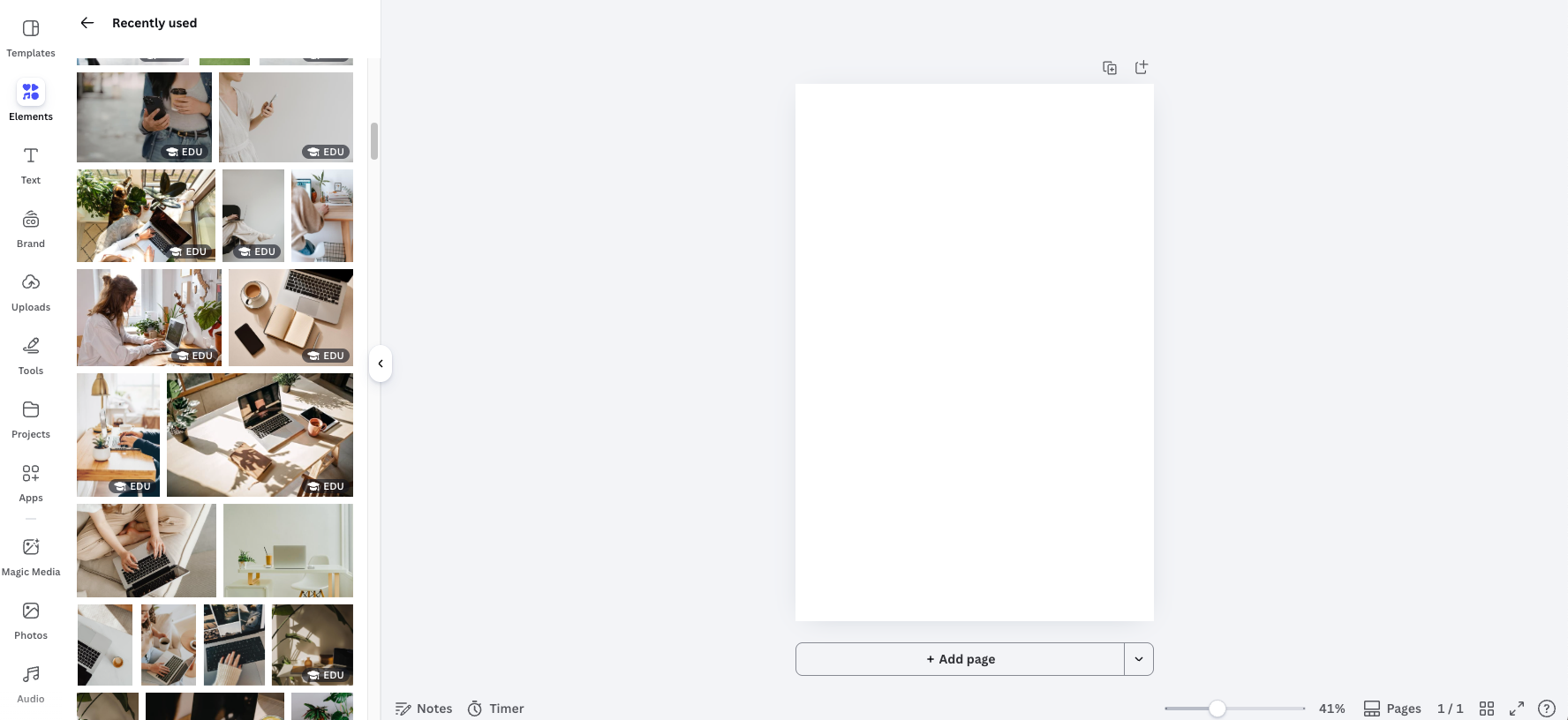
Canva's Built-In Library
I know I said Canva is guilty of having the cheesy stock photos, but you can also find some quality photos depending on your content. This one is also the most convenient if you are already creating your pin graphics in Canva — it saves you the step of downloading and re-uploading photos from another source.
Kaboompics
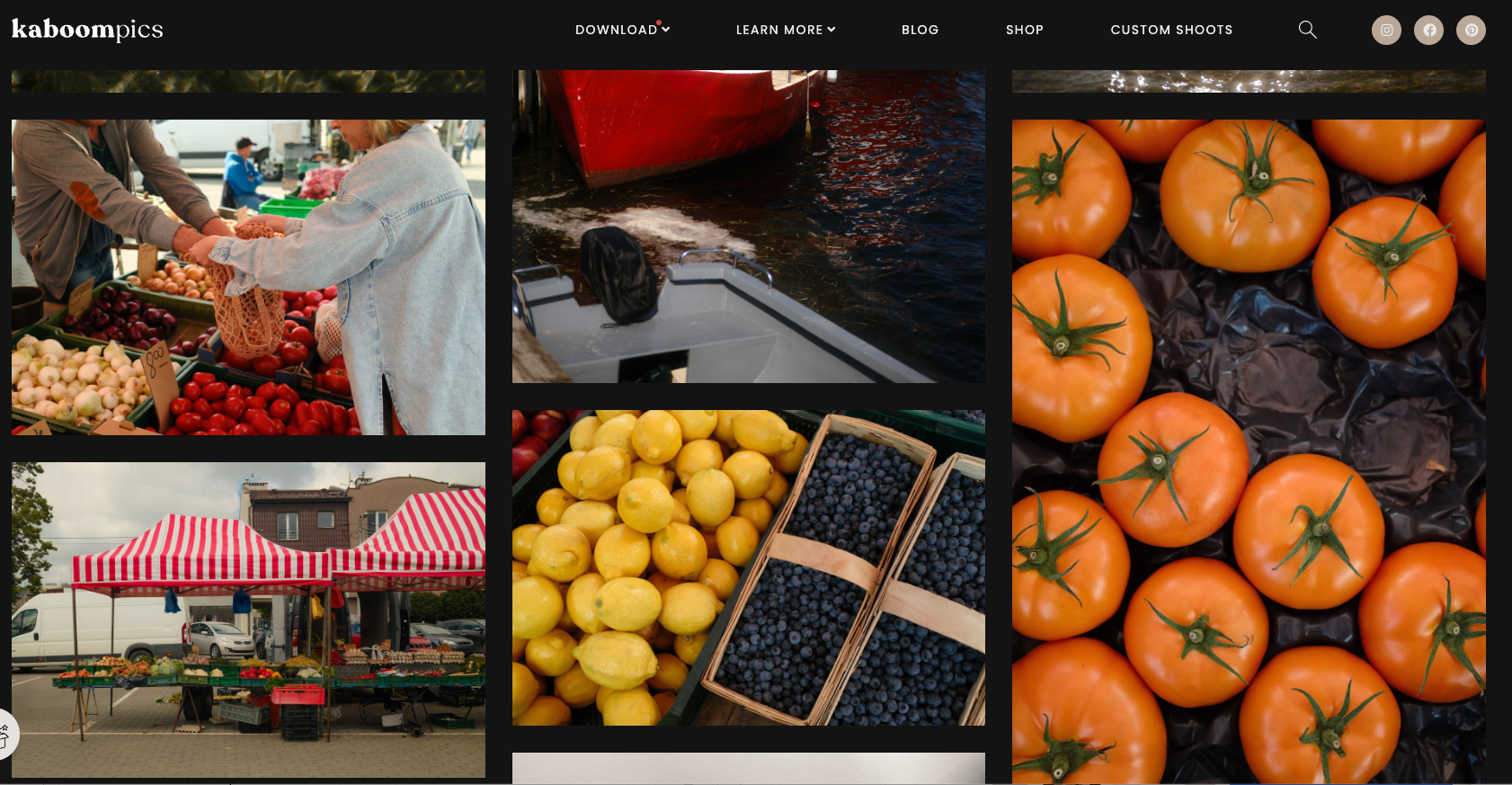
Kaboompics' photo library feels very elevated and curated. The photos feel more artistic and professional without the cheesy vibes. They also have options to search based on color palette, which makes it easier to keep your photos on brand with your aesthetic.
Dupe Photos
Dupe Photos is one of my favorites. It's actually less stock-photo-like because the photos are taken by real creators and added to the Dupe library. Their search features make it easy to find on-brand photos, and the overall vibe honestly reminds me of Pinterest, which is exactly why it works so well for creating pins.
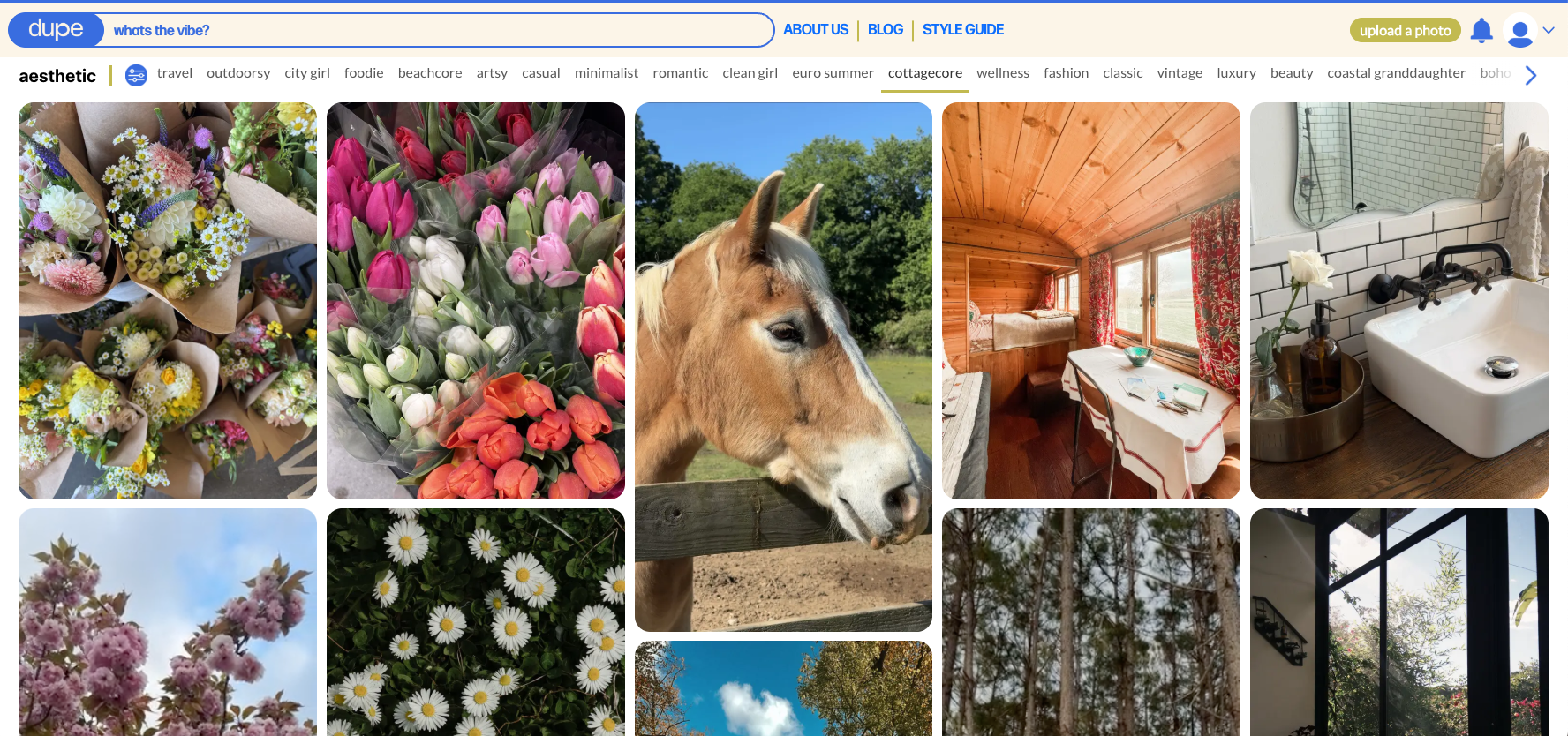
Overall, the goal when including photos in your pins is to find the balance between visually appealing and content relevance.
You want the photo to stop someone mid-scroll and make them want to click, but also be clear enough for the Pinterest algorithm to understand what your content is about.
This may take some trial and error to find the type of stock photos that perform best for your account and content topic — and that's totally normal.
Best Practices for Designing Your Pins
Once you have your images picked out, it's time to actually design the pin. Here are a few best practices to keep in mind as you're building out your graphics:
Best tool for designing pins: Canva (free and paid options) — it's user-friendly, has Pinterest pin templates already sized correctly, and lets you build out a whole library of pins quickly
Pinterest's recommended pin size: 1000 x 1500px (2:3 ratio)
Font best practices: Stick to bold, clean sans-serif fonts for readability; limit yourself to 2 font styles max so the pin doesn't feel chaotic
Color and contrast: Your text needs to be readable at a glance — if someone has to squint to read it while scrolling, they're going to keep scrolling
Brand consistency: Include your logo, website, or business name somewhere on the graphic. You can use your brand fonts and colors too, but make sure they are bold and easy to read. That said, still give yourself a lot of variety so your content stays fresh and appeals to a wider audience
Keyword placement: Include your keyword in the text overlay, your pin title, and your pin description. Not sure what a keyword is or how to find them? You can read more about keywords here.
Building Your Pin Strategy
A big part of your Pinterest strategy should be testing different types of content to see what performs best for your specific audience. You can't just create one type of pin, post it a few times, and expect to know what works. You need a variety of pin types to gather real data — and then let that data guide your decisions going forward.
Over time, your Pinterest analytics will show you which formats your specific audience responds to. You don't want to just assume what will work best; you want to let the data tell the story.
A few of the different types of pins you should test:
Pins with no image (text-only or graphic-only)
Pins with text overlay on a photo
Infographics
Collages (if relevant to your niche)
Video pins (if relevant to your niche)
For every blog post, podcast, or YouTube video you create, start by creating 7–10 unique pins in 2–3 different pin styles. Then schedule those out over time and monitor analytics 30–90 days after posting.
You want to consider which graphics are performing well, but also analyze what hooks, titles, or types of content are resonating most. They all work together, and your analytics will give you really helpful information about what your audience wants to see.
Frequently Asked Questions About Creating Pinterest Pin Graphics
What size should Pinterest pin graphics be?
Pinterest recommends a 1000 x 1500px size for standard pins, with a 2:3 ratio. You'll find this size if you search "Pinterest Pin" in Canva. Sticking to this ratio helps your pins display correctly in the feed and avoids any awkward cropping.
Do I have to put my logo on every pin?
It's not required, but it is strongly recommended. Adding your logo, website URL, or business name helps build brand recognition over time. The more someone sees your branding in the feed, the more familiar you become — and familiarity builds trust.
What's the best font to use on Pinterest pins?
Bold, clean sans-serif fonts are your best bet. They're easy to read at a glance while someone scrolls, which is the goal. Try to stick to no more than two font styles on a single pin, and avoid script or decorative fonts that can be hard to read quickly.
How many pins should I be creating?
A good starting point is 7–10 unique pins per piece of content (blog post, podcast episode, YouTube video, etc.) in 2–3 different styles. This gives you enough variety to test what works without burning yourself out right away.
How do I know which pin types are working?
Pinterest Analytics is your best friend here. After posting, give your pins 30–90 days to gain traction, then look at metrics like impressions, saves, and outbound clicks. Outbound clicks are especially telling because they show who's actually making it to your website. Over time, patterns will start to emerge and you'll know which formats your audience loves most.
Additional Pinterest Tips and Resources for Business Owners and Content Creators
Overall, creating Pinterest pin graphics doesn't have to be complicated, but it does take a little intention. When you understand the why behind the design choices — like the branding, the readable fonts, the clear CTA, the right stock photos — it starts to feel less like guesswork and more like a strategy. And that's exactly what it should be!
When you’re first getting started on Pinterest, start simple. Pick one or two pin types, apply the non-negotiables, and get them scheduled. Then let the data do its thing.
Over time, you'll learn what resonates with your audience, and you can refine from there. At the end of the day, Pinterest rewards consistency and clarity, and the more you create with both of those in mind, the more you'll start to see results.
If you’re looking for more Pinterest tips and resources, I’ve got them for you:
Download The Pinterest Keyword Starter Pack – a free guide to help you find the right keywords and keep them all in one (very) organized place.
Pinterest Content Audit – A personalized video audit that shows you exactly how your existing content translates to Pinterest — in 10 minutes or less.
Or if you’re feeling overwhelmed or like you just don't have the time to figure all of this out on your own, that's what I'm here for. I offer a few different Pinterest Marketing Services for business owners, service providers, and content creators, including: