

I know everyone on the internet is always talking about how easy it is to turn your blog post, podcast episode, or YouTube video into tons of pins (myself included). But it’s not always clear how to do it or why you should create that many pins.
If you are used to creating content for social media, you are probably used to creating one post per idea. And yes, you repurpose it and find new ways to say your main messages, but for the most part, each idea gets one post.
When you’re creating pins for Pinterest, the process is totally different. You want to use the pin to hook the Pinterest user to click out to your website; you aren’t delivering the whole message in the pin.
For Pinterest, volume and variety matter, too. You want to make sure you create pins that appeal to different user types and interests.
The more pins you can create from different angles and with different designs, the wider the audience you can reach on Pinterest.
There are all sorts of strategies for creating many pins per post, and many of them can be effective. There isn’t necessarily one right way to create pins; you just need to find the best approach for your content and your capacity.
It’s a balancing act too. On one hand, it’s beneficial to create lots of pins, and Pinterest really likes when you have a variety of content consistently being posted. But on the other hand, if you’re posting very similar pins in large volumes, your pins or even your account could get flagged as spam.
If you’re new to creating on Pinterest, you might be wishing someone could just tell you exactly what works and what doesn’t.
You’re probably also wondering how to actually create that many pins for one post.
I’m going to walk you through the exact process I use for myself and my clients to turn one blog post into 10-15 pins. I’ll give you a real example with pin graphic, title, and description examples so you can see how it works in action.
Consider this your guide to repurposing your content into pins that will drive traffic back to your content!
What Does It Actually Mean to Get 10-15 Pins Out of One Blog Post?
When I say create 10-15 pins per blog post, I don’t mean 10-15 pins saying the same thing with slightly different images or designs. If you create them too similarly, they can get flagged as spam.
It means creating pins with about 10 different entry points into the same content. You want to identify the different angles or user types that might be searching for your content and think about what will speak to them best.
Identifying the different angles and entry points for your content is becoming even more important as Pinterest adjusts its algorithm.
It used to be that when someone searched for something on Pinterest, their feed would fill up with posts aligned with what they were looking for. Pinterest would show them lots of options for what they searched for.
Now, the algorithm has leveled up.
Pinterest engineers realized that showing a user a lot of the same type of content led them to leave sooner. Once they got what they needed, they didn’t need to be shown the same content over and over again.
That means now, when someone searches something, the algorithm is considering what that user will need next or what else they might be thinking about and will also show that in their feed.
For example, if someone searches “meal prep ideas for pregnancy” on Pinterest, they might see pins in their feed with recipe ideas, freezer meal ideas, and meal prep guides. But they might also see content like “baby prep checklist,” “everything you need to prepare before your baby is born.” or “postpartum care cart essentials.”
This is important for us to know because creating a large volume of pins doesn’t work the same way it once did to get more reach.
The Pinterest algorithm rewards content that hits a variety of angles, not just variety in the design.
How Do You Find the “Pin-Able” Angles Inside One Blog Post?
Every post you create usually has multiple angles hiding in it. There’s usually one main point or topic you are addressing. But your post might also address common mistakes and how to correct them. It could list out all the steps in a process. You likely highlight a result or outcome the reader can achieve after implementing what you teach. You could also address a mindset shift. And every blog post has a few different “who this is for” audience types.
Where you can easily find different angles within a blog post:
The main headline
Each H2 subheading (each one is a potential pin on its own)
A common mistake or myth the post addresses
A specific result, number, or timeframe mentioned
A quote-worthy line
The “who this is for” audience angle
A process or steps you’re walking them through
How Do You Vary Pin Design Without It Feeling Repetitive?
It’s helpful to vary one aspect of the design at a time rather than trying to change everything for every pin. The two main ways I like to vary design are with text size and background.
Change up the text size
For some pins, I like large text that takes up most of the pin. For others, I like the text as a heading at the top or bottom, with an image filling the rest of the pin. Another way to vary the text design is to include a title and subtitle; that way, some pins have a little extra context.
Change the images and background
This is probably the easiest way to make the pins look different. Some pins can have a plain color background with large text, while others can have a pattern background. It’s also great to use on-topic images as the background and to vary the pin types.
Depending on your industry and topics, pictures may be the most important way to vary your pins. Some service-based businesses may not have specific product images to share, so choosing relevant stock photos is best. But if product photos are important to your pin, a variety of shots will help you vary your pin designs.
Other changes you can make to add variety
Always include your website or logo on your pins so you can mix some with the website URL and others with your logo. If you have multiple logo options, include a variety in your pins.
Changing colors isn’t a significant difference so it shouldn’t be the only change you make for your pins, but it helps to add variety when you are doing it alongside one of the other recommended changes.
Of course, changing the text/titles on the design is an important way to add variety. You’ll add the pin titles you come up with to most of your pin graphics as well. To dig deeper into designing pin graphics, you can read The Complete Guide to Designing Pinterest Pins for Your Business.
What Makes Each Pin Distinct Enough to Perform on Its Own?
A pin should make sense and create curiosity completely on its own. A Pinterest user isn’t usually seeing your other pins and doesn’t have the context of your blog post yet. That means your text and images need to make it clear what information they'll get when they click your pin.
You’ll want to check that every pin can make sense on its own by asking yourself things like:
Does the headline angle draw in the right audience?
Does the visual align with your topic or product?
Does your blog post or product deliver on the implied promise you’re stating in your pin title and description?
A common mistake that may have worked in the old days of Pinterest but you can’t get away with now is changing only the color while keeping the headline and images the same.
While this may let you create pins at high volume, it won't actually help your account grow. It’s more likely to hurt your account than help it. The algorithm has become much more sophisticated and doesn’t consider a color change a “fresh pin.” You’re putting your account at risk to be marked as spam if you use this strategy alone.
Examples of How to Turn One Blog Post into 10 Pins
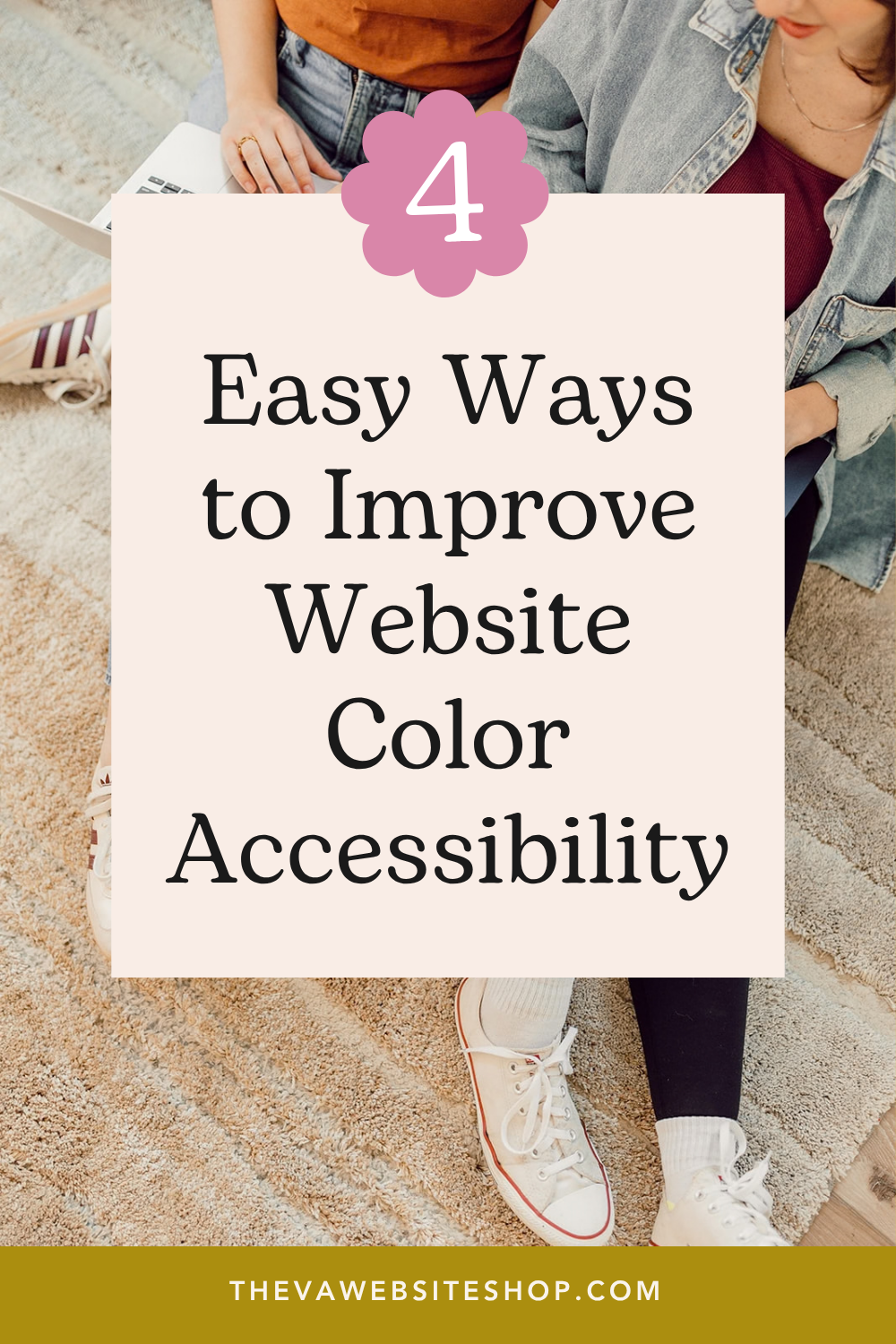
Here’s an example of 10 pins I created for my client who has a Squarespace Template shop.
Blog Post: How to Make Sure Your Website Colors are Accessible
The 10 pins:
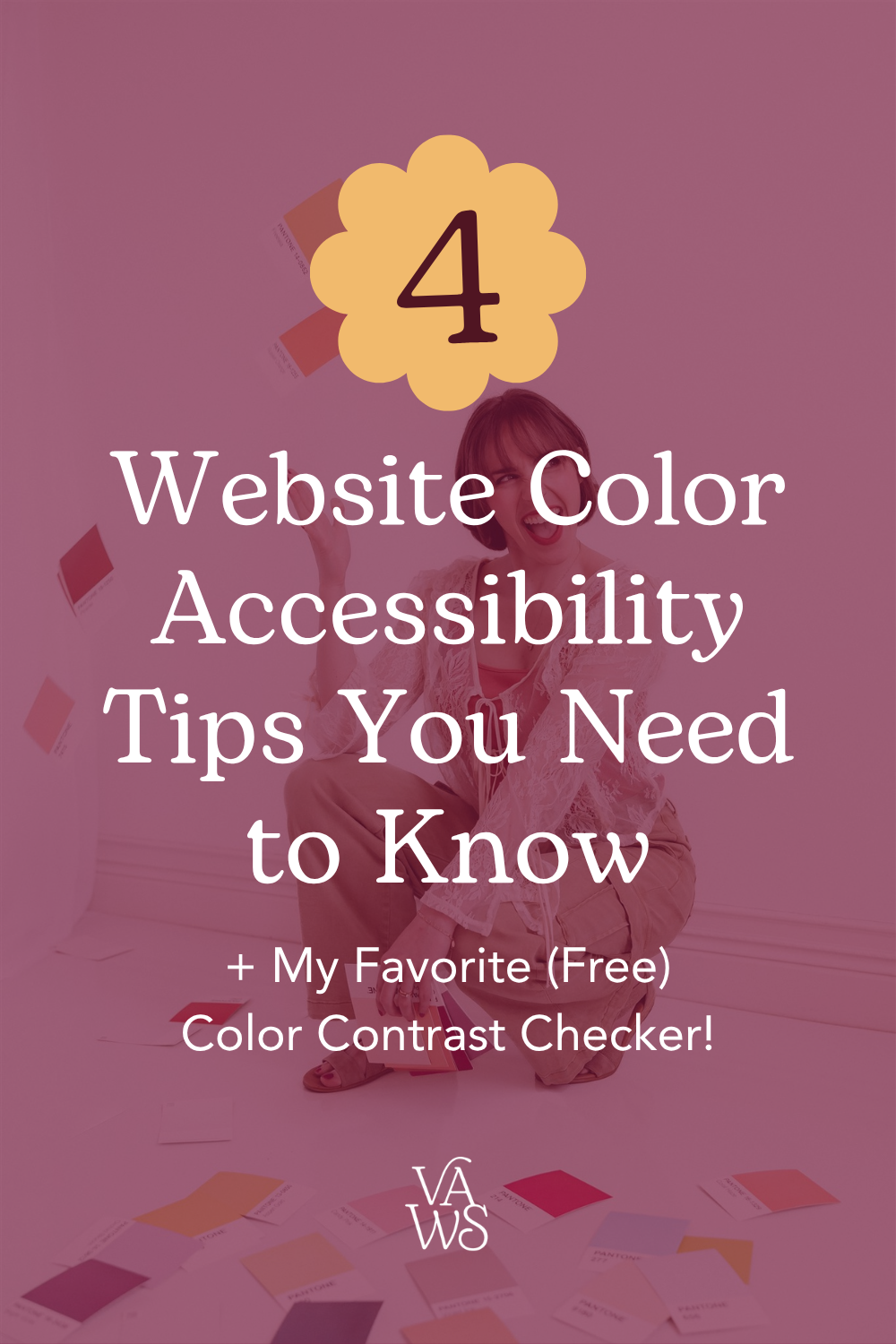

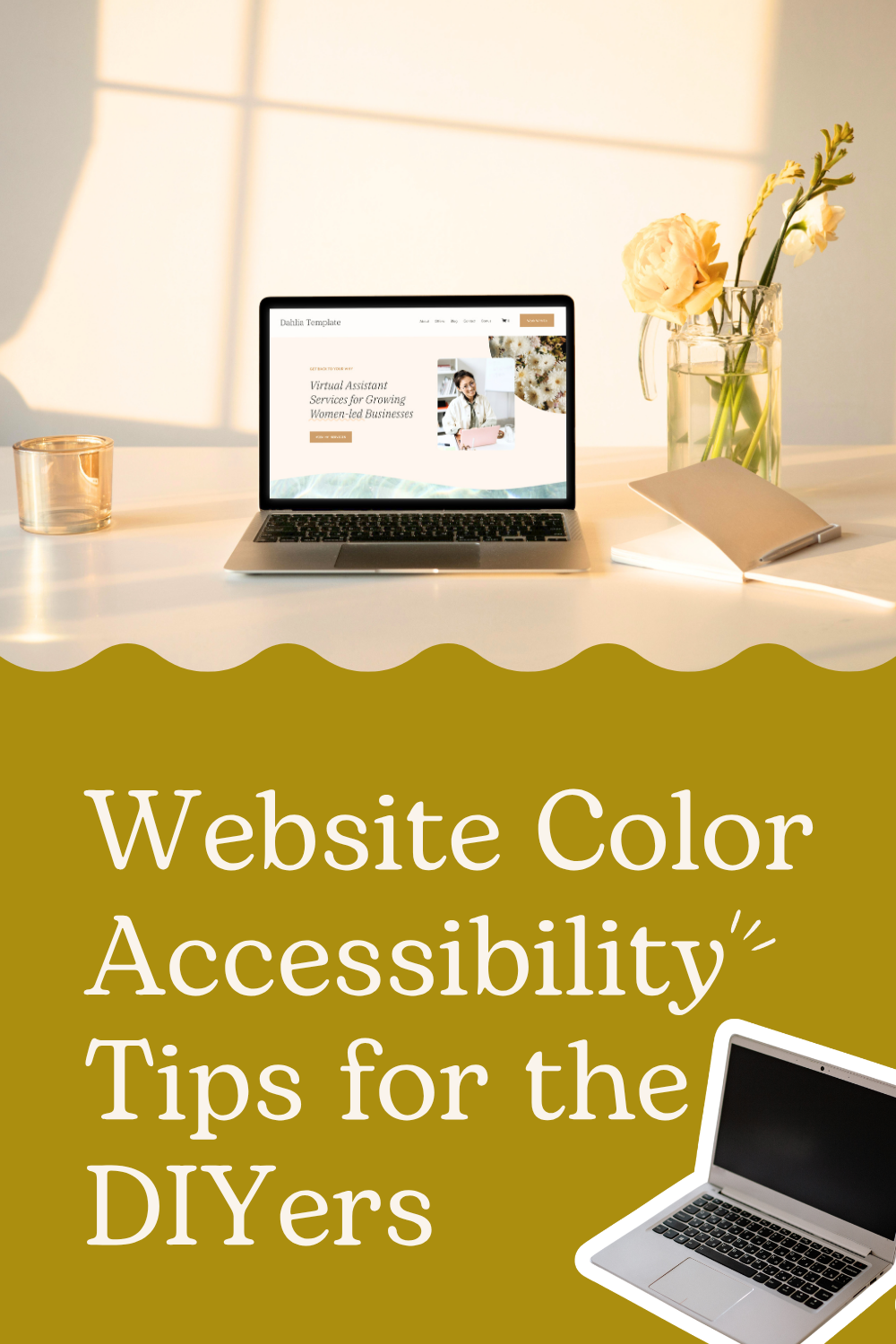
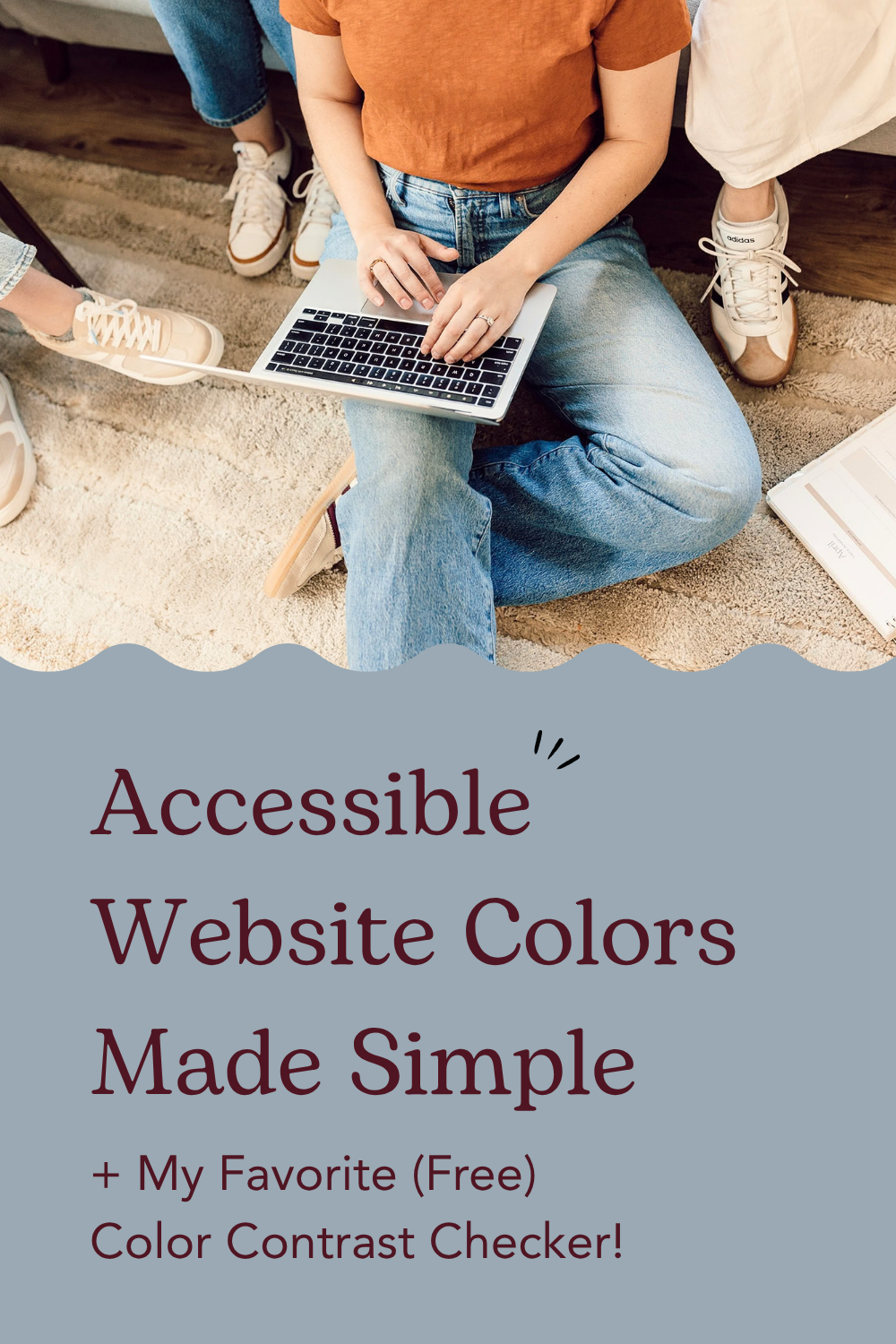
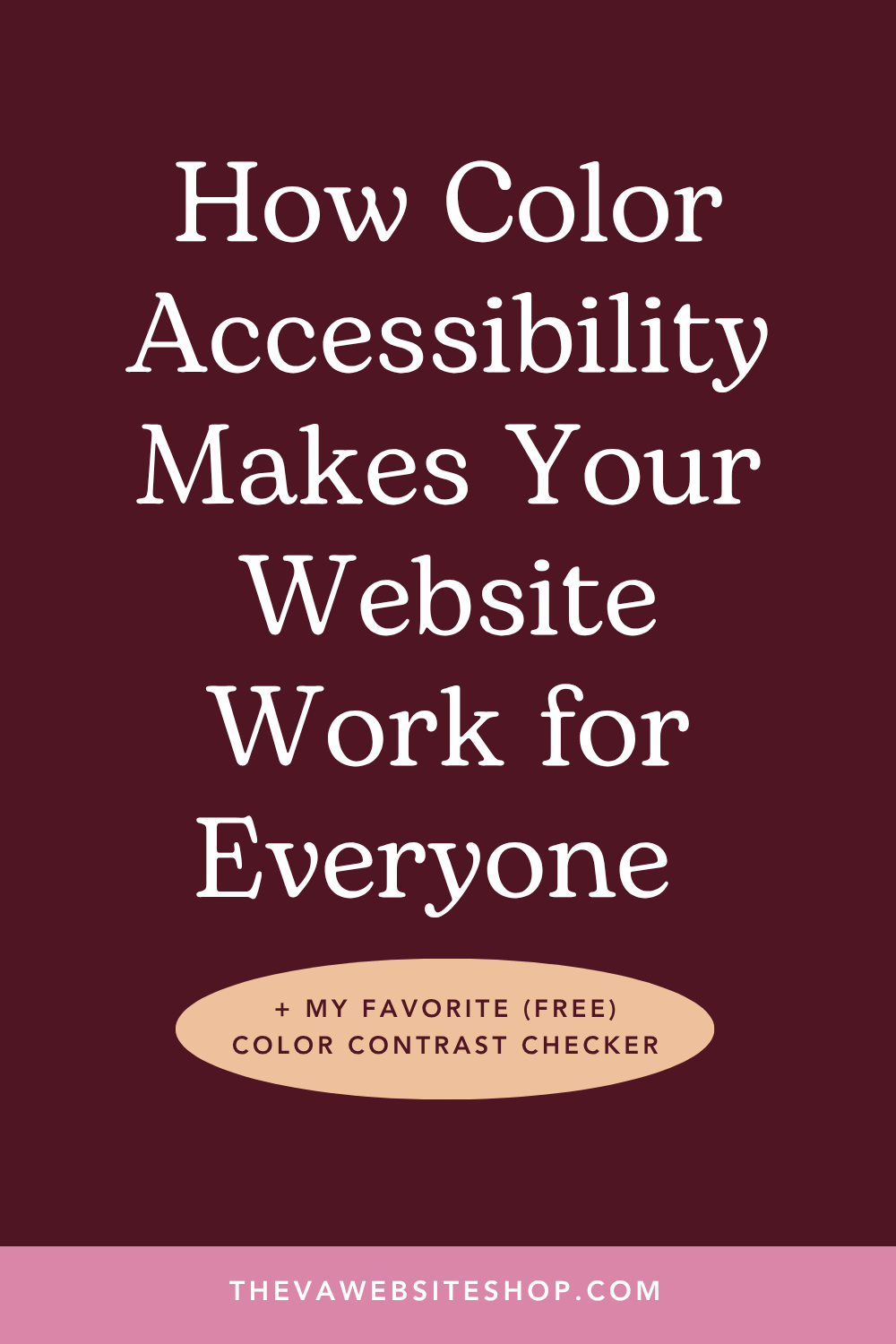
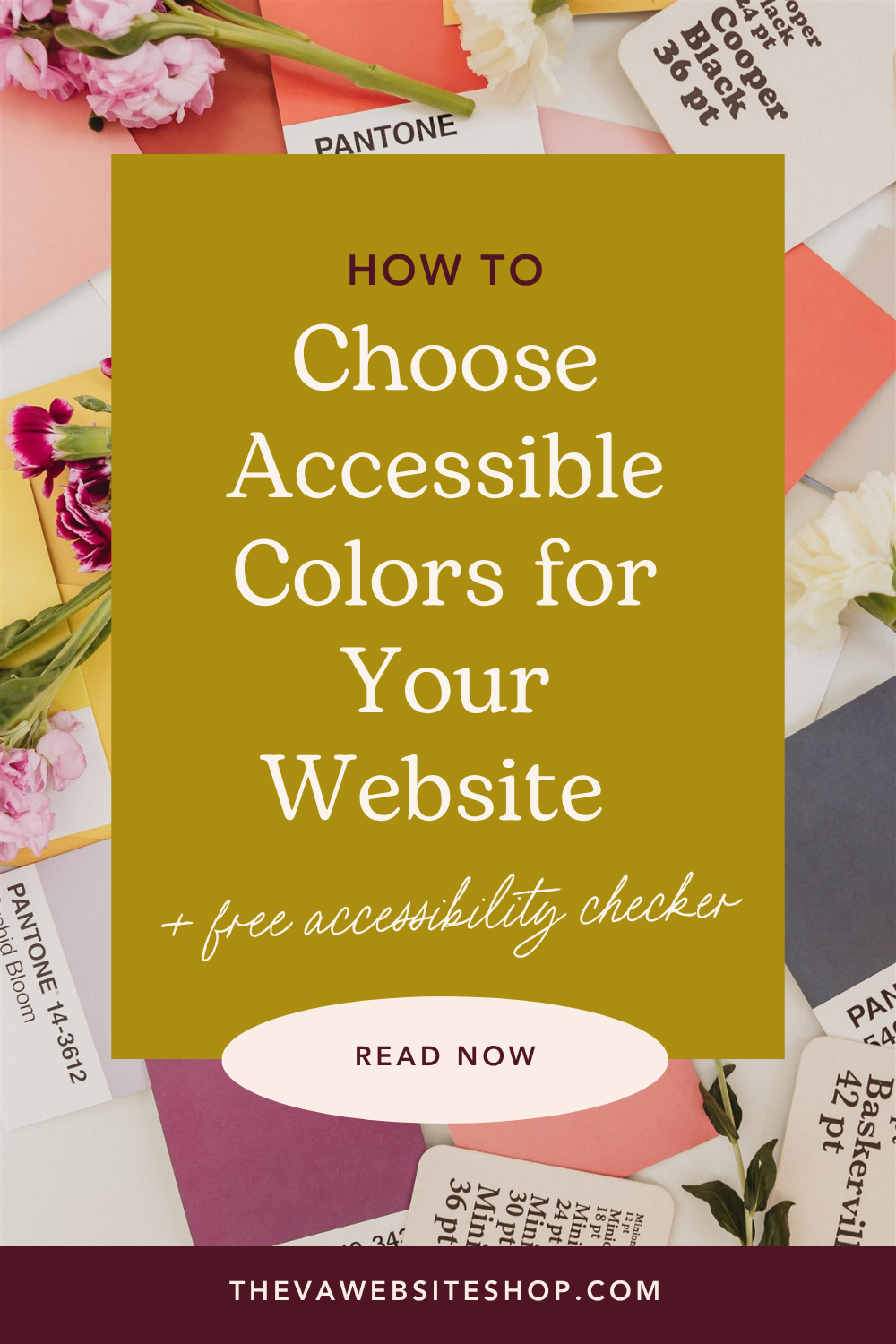
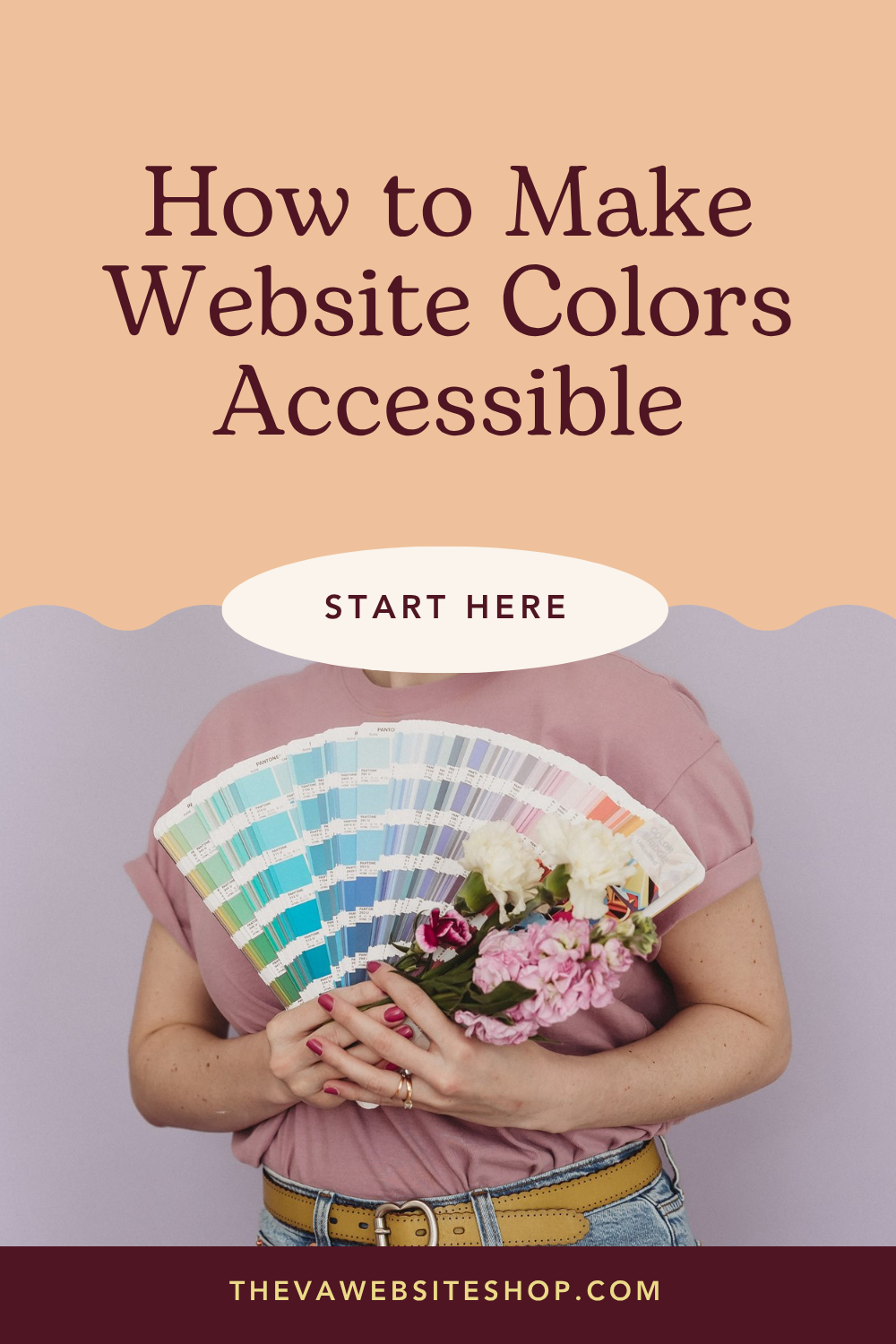
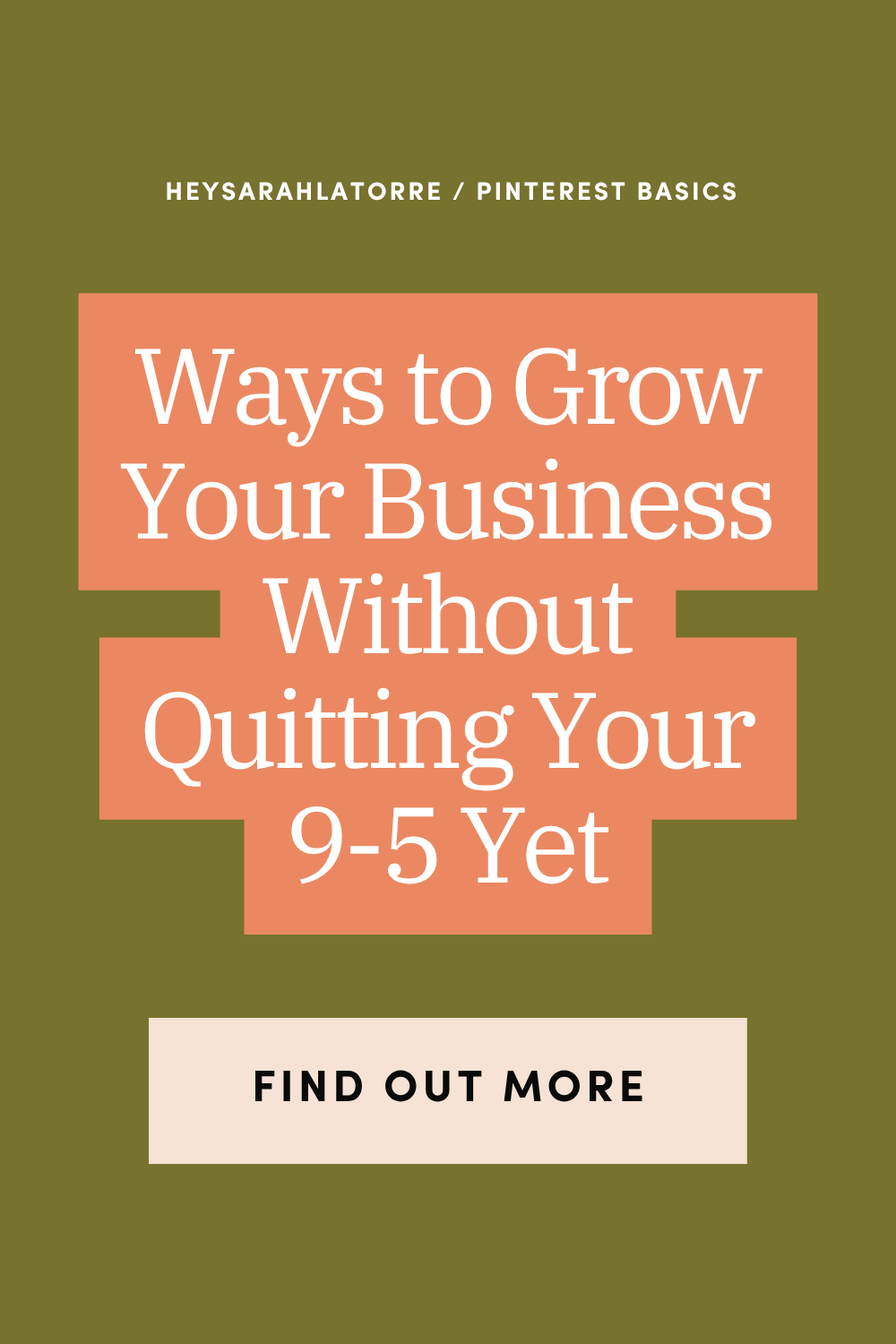
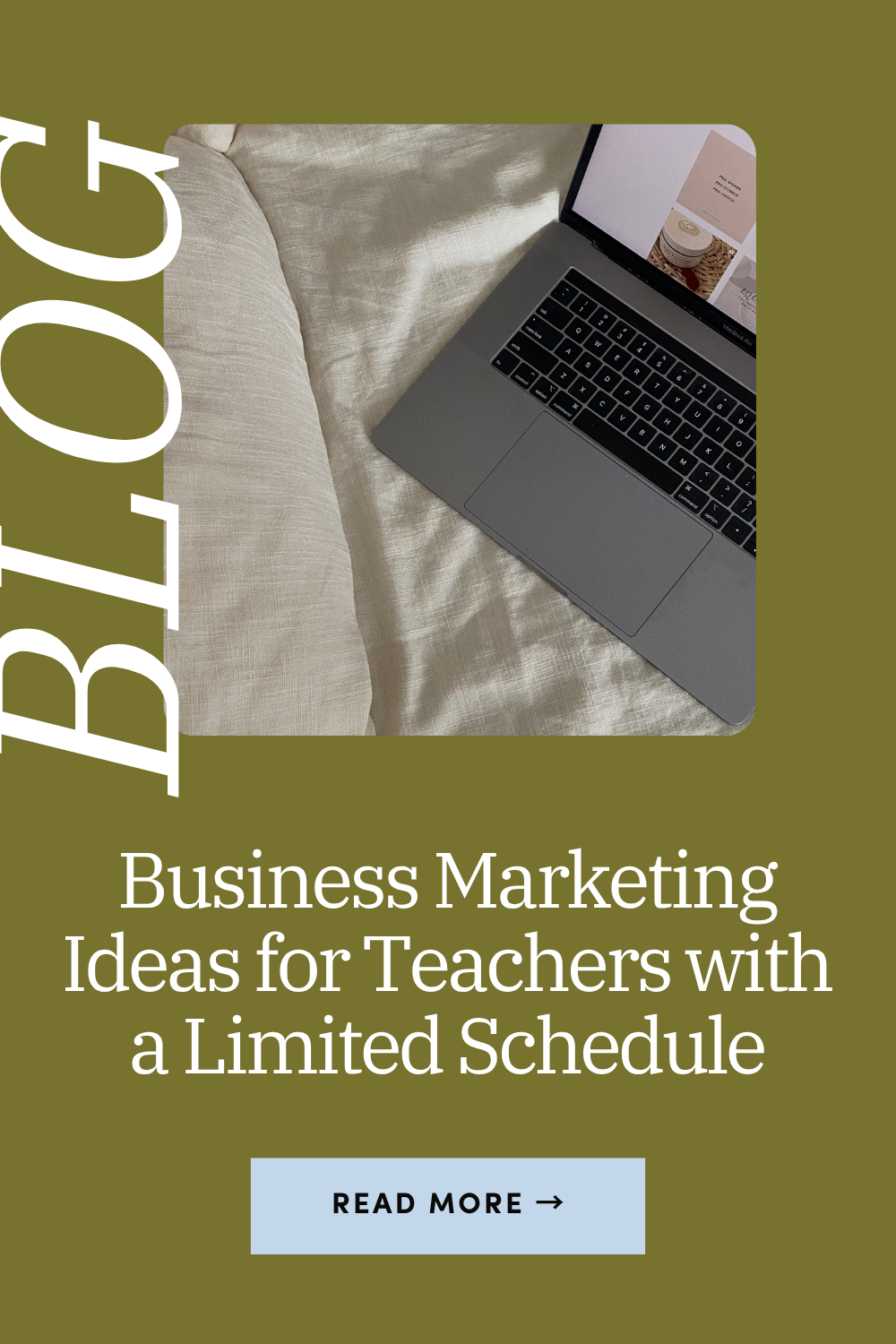
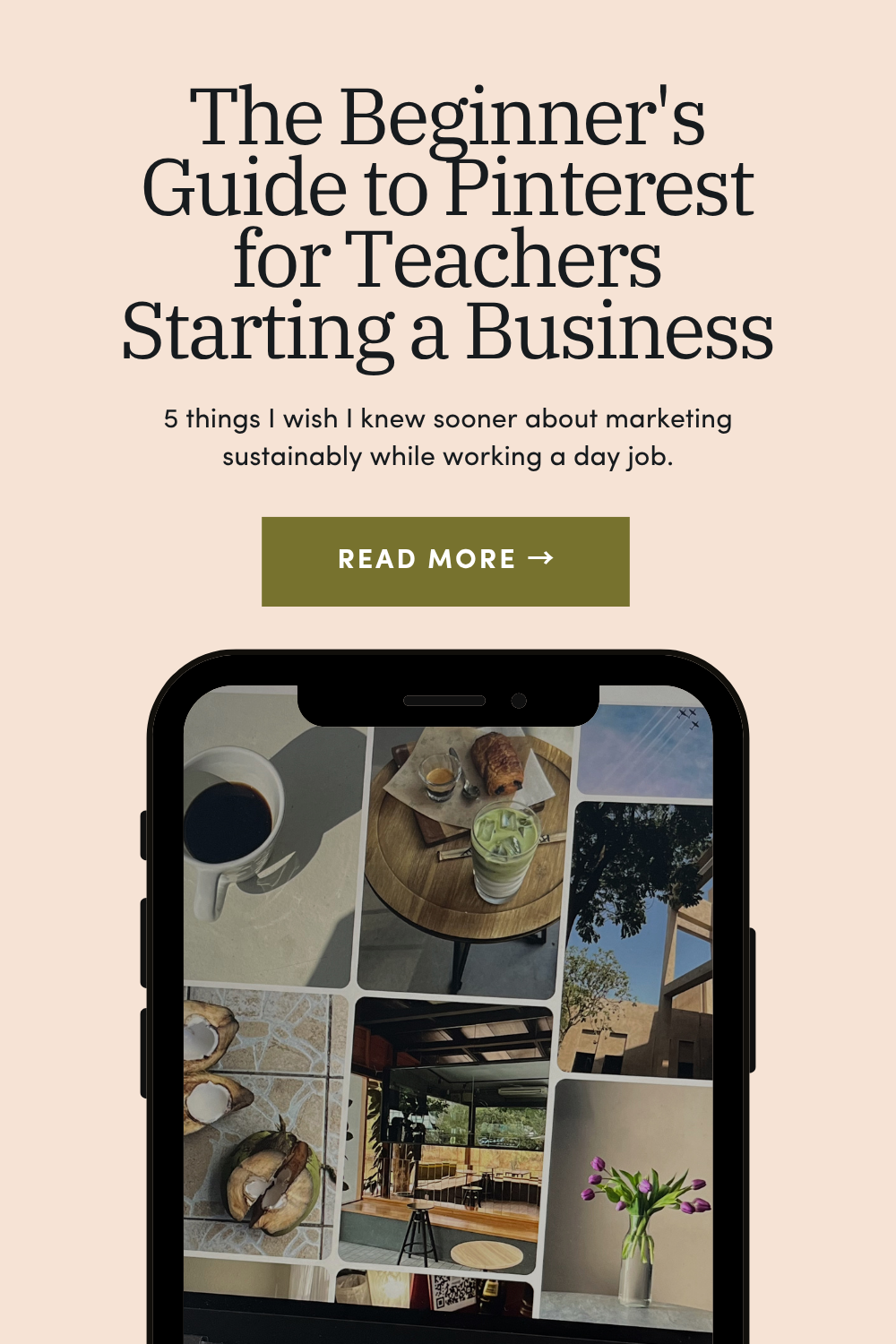
Here’s another example of 10 pins I created for my own blog post.
Blog Post: 5 Things I Wish I Knew About Marketing My Business While I Was Still Teaching
The 10 pins:




How Do You Roll Out 10-15 Pins Without Overwhelming Your Schedule (or Pinterest)?
You want to spread pin scheduling over days and weeks. You don’t want to upload them all in a single day and then skip pinning again until you write your next blog post.
There are different recommendations for posting cadence, and it really depends on what performs best for your account. In the early days, you will likely need to experiment with what works best for your account.
Some people recommend pinning 1 pin per URL per day. Others recommend 1 pin per URL per week. Others are totally fine to pin 3 pins to the same URL in 1 day.
I usually recommend you pin 1-2 pins per URL per day to start. If you want to pin 3-5 times per day, then vary your URLs a bit. But you’ll want to see how that schedule works for your accounts and adjust accordingly.
A slow rollout of content for a blog post will help you stay more consistent with pinning and support a slow, evergreen approach to sharing your content.
Common Mistakes to Avoid When Repurposing a Blog Post into Multiple Pins
Avoid reusing the same headline for multiple pins (especially if you’re only changing the colors)
Don’t post all the pins on the same day
Avoid creating pins that don’t match what the post actually delivers
Don’t miss out on potential angles that are in your content because you’re only thinking of ways to reword your title. Scan your whole blog post for good pin content.
Pinterest Strategy Services for Business Owners and Content Creators
You want to make sure your blogging and Pinterest strategy work well together to get the most visibility for your website.
Once you start creating more pins for each of your blogs, it becomes a lot easier to stay consistent on Pinterest.
If you’re struggling to create Pinterest content for your blog posts, I’d love to help!
My Monthly Pinterest Management service is designed for business owners and creators who want someone to fully manage the Pinterest strategy, planning, and content creation. It’s a fully done-for-you experience where I’m your Pinterest person and marketing collaborator.
With monthly done-for-you Pinterest management, you’ll get:
Kickoff call – to review your goals and build your strategy together
Initial keyword research + competitor research – I do a deep dive on Pinterest to identify the best keywords for your content and angles that are unique + stand out against competitors
Pinterest profile optimization – I take what I learned during the research phase to create a keyword-optimized profile and boards
Daily pin creation and scheduling – I handle all content creation for up to 5 pins per day
Quarterly strategy call – every quarter we meet to plan for the months ahead
Ongoing keyword research – with every season, I am updating keyword research to make sure we are hitting on trends and important seasonal content
Monthly analytics reports – I deliver video analytics reports monthly, so you know exactly what’s going on with your Pinterest account.
If you want to DIY your Pinterest, I also have ways to support your DIY Pinterest journey!
Click here to learn more about the done-with-you Pinterest support services and choose the best fit for your needs.